Galaxy Watch FE takes the proven Watch 4 hardware platform and adds sapphire crystal glass and Wear OS 5 - three major software generations beyond the Watch 4's original OS, at a lower price. The result is the most accessible entry to Samsung's BioActive Sensor ecosystem: optical heart rate, ECG hardware, and body composition analysis in a single chip. No native iPhone support comes with Wear OS - Merge supplies it: notifications, calls, and Apple Health sync from the most affordable Galaxy Watch Samsung makes.
What Watch FE delivers through Merge
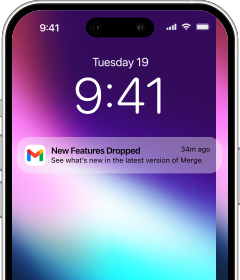
Merge connects the Watch FE to your iPhone over Bluetooth. Every iPhone notification arrives on the watch in real time - and you decide per app which ones reach your wrist, so the stream stays focused. Alerts can be dismissed directly from the watch.
Incoming calls ring on the watch and can be answered and taken from your wrist - your iPhone contacts sync to the watch so the caller's name shows up immediately. Music playing on your iPhone is controllable from the watch: skip, pause, or adjust volume without pulling out your phone. When the iPhone camera app is open, the watch works as a remote shutter. For the most affordable Galaxy Watch Samsung makes, the Watch FE covers all the Merge capabilities listed above.
Health data from the BioActive Sensor syncs to Apple Health: heart rate, steps, distance, floors climbed, calories, and workouts with GPS routes and pace all land in the Health app automatically.
First-time setup
Use Galaxy Wearable on Android if you have it - it handles Google account sign-in, Play Store, and watch configuration in one pass. No Android? The Merge iPhone app has a built-in wireless installer that sets up the Watch FE directly, no other device needed.
Pairing Merge with Galaxy Watch FE
Keep your iPhone and watch within a few feet of each other throughout this process.
- On your iPhone, search the App Store for Merge Watch and install it.

- On the Watch FE, open Play Store, search for Merge Watch, and install it.

- On your iPhone, open Merge and keep it on screen during discovery.
- Open Merge on the watch and approve the Bluetooth permission request.
- Select your iPhone from the scan results.
- Tap Pair on the Bluetooth dialog - this takes a few seconds.
- If prompted, set up your Merge subscription via the iPhone app.
- Grant notification and health permissions on both devices when asked.
Samsung's battery optimizer will place Merge in the Sleeping Apps list and kill the background connection if you don't remove it. Open Settings - Battery - More battery settings - Sleeping apps on the watch and take Merge off that list.
Day-to-day with iPhone
The Watch FE covers the core Merge capabilities at the lowest price in the Galaxy Watch lineup: notifications, calls, contacts, music control, camera remote, and health sync to Apple Health. Sapphire glass holds up to daily wear without scratching, and the BioActive Sensor hardware underpins all the health tracking. For anyone entering the Galaxy Watch ecosystem from iPhone for the first time, the Watch FE is the lowest-barrier way in - with nothing left out of the feature set.