Galaxy Watch 5 made two hardware changes that compound over years of daily use: sapphire crystal glass (Mohs hardness 9, measurably more scratch-resistant than the Gorilla Glass DX+ on Watch 4) and a larger battery with charging quick enough to deliver 8 hours of use from 8 minutes on the cable. Practical durability over spec sheet numbers. Wear OS 3.5 provides no native iPhone path - Merge does: pair Watch 5 to your iPhone for notifications, calls, and Apple Health syncing from a watch built to last.
How Merge extends Watch 5 to iPhone
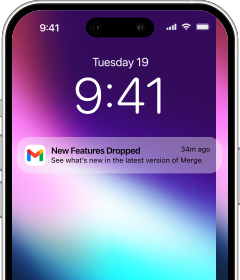
Merge relays everything between the Watch 5 and your iPhone over Bluetooth. iPhone notifications from any app arrive on your wrist in real time; the always-on display means a quick glance catches each alert without a wrist raise. You control which apps push to the watch and which stay off, keeping the stream exactly as noisy or quiet as you want. Alerts can be dismissed from the watch.
Calls ring on the watch and can be answered and taken from your wrist - your iPhone contacts sync to the watch so the caller's name shows up immediately. Music controls let you skip, pause, or adjust volume on whatever is playing through your iPhone, without pulling the phone out. When your iPhone's camera app is open, the watch doubles as a remote shutter.
Health data syncs to Apple Health: heart rate, steps, distance, floors climbed, calories, and workouts with GPS routes and pace all transfer automatically.
First-time setup
Two paths. If you have an Android phone, use Galaxy Wearable - it handles Google account sign-in, Play Store setup, and firmware in one pass. If you don't, open the Merge iPhone app and use the built-in wireless installer to activate the Watch 5 directly. Either way works; pick whichever is available to you.
Pairing Merge with Galaxy Watch 5
Keep iPhone and watch within a few feet of each other throughout.
- On your iPhone, search the App Store for Merge Watch and install it.

- On the watch, open Play Store, search for Merge Watch, and install it.

- Open Merge on the iPhone side and keep it active in the foreground.
- On the watch, open Merge and grant Bluetooth access.
- The watch finds your iPhone and lists it - tap to connect.
- Accept the pairing request that appears on one or both devices.
- If prompted, set up your Merge subscription via the iPhone app.
- Grant notification and health permissions on both devices when asked.
Before you put the watch on and walk away: go to Settings - Battery - More battery settings - Sleeping apps on the watch and remove Merge if it's listed there. Samsung's background process manager will otherwise terminate Merge's connection without warning, producing what looks like an intermittent Bluetooth problem but is actually a battery optimization culling the background task.
Day-to-day with iPhone
Sapphire glass holds up to daily wear without accumulating the fine scratches that show up on standard glass over months of use. With Merge running, notifications arrive at the wrist throughout the day, calls come through without reaching for your phone, and the full picture - steps, heart rate, workouts with routes, and every other synced metric - builds automatically in Apple Health in the background.