Galaxy Watch 4 Classic is the premium form of Samsung's first Wear OS watch, and its mechanical rotating stainless steel bezel with tactile click stops makes its priorities obvious: this is a watch built to be controlled by a physical gesture, not a swipe. MIL-STD-810G durability certification sets it apart from the standard Watch 4. Wear OS replaced Tizen and removed native iPhone support in the same move - Merge restores it: pair the Classic to your iPhone for notifications, call management, and Apple Health sync.
Everything Merge delivers on Watch 4 Classic
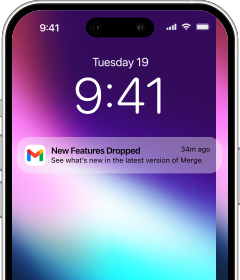
Through Merge, the Watch 4 Classic relays the full iPhone notification stream to your wrist - Messages, Mail, WhatsApp, calendar alerts, and every other app you choose. You decide which apps forward notifications and which stay quiet, keeping full control over what reaches your wrist. Alerts can be dismissed directly from the watch. When a call comes in, the watch rings and you can answer and speak from your wrist without touching your phone - iPhone contacts sync to the watch so the caller name shows up.
Music playing on your iPhone is controllable from the watch: use the rotating bezel to scroll through playback controls, skip tracks, or adjust volume without picking up your phone. And when your iPhone's camera app is open, the watch works as a remote trigger - handy for group shots or anything where you want distance between you and the lens.
Health data from the BioActive Sensor syncs to Apple Health via Merge: heart rate, steps, distance, floors climbed, calories, and workouts with GPS routes and pace all land in the Health app.
First-time setup
The Watch 4 Classic is a premium piece of hardware, and users drawn to it typically have capable Android phones nearby - or can borrow one easily enough. Samsung's Galaxy Wearable app on Android is the recommended activation path: it takes care of Google account sign-in, Play Store configuration, and initial software setup in a single guided flow, which is the cleanest way to initialize a watch at this level.
If no Android device is available, the Merge iPhone app includes a built-in wireless installer that handles full standalone activation. Each step runs through the in-app flow on your iPhone - nothing to borrow.
Pairing Merge with Galaxy Watch 4 Classic
Keep your iPhone and watch close together - within a few feet - throughout this process.
- On your iPhone, search the App Store for Merge Watch and install it.

- On the Watch 4 Classic, open Play Store, search for Merge Watch, and install it.

- Launch Merge on your iPhone - keep it visible on screen, not minimized.
- Launch Merge on the watch and tap Allow for the Bluetooth prompt.
- When your iPhone shows up on screen, select it.
- Approve the Bluetooth bond when the pairing dialog appears.
- If prompted, set up your Merge subscription via the iPhone app.
- Grant notification and health permissions on both devices when asked.
If you notice the connection dropping after about a day - watch stops showing notifications, calls stop ringing at the wrist - the cause is almost always Samsung's Sleeping Apps list. That feature places apps it considers inactive into a sleep state where they can't run in the background, cutting Merge's connection without any warning. Navigate to Settings - Battery - More battery settings - Sleeping apps on the watch and remove Merge from the list to stop this from happening.
Day-to-day with iPhone
The rotating bezel earns its keep every day. Scrolling through a stack of iPhone notifications, skipping to music playback controls, navigating back through a menu - you do all of it by turning the ring, keeping your fingers clear of the display. In cold weather or gloves, that interaction model is far more reliable than swiping a small screen. The stainless steel and sapphire-like scratch resistance mean the watch holds up well over time - and via Merge, the health data, calls, and notification stream from your iPhone reach the watch reliably throughout.