Pixel Watch 4 is the first smartwatch that can reach emergency services with no phone, no cellular plan, and no Wi-Fi in range - Skylo NTN satellite integration built directly into the chip. Gemini AI runs on the watch itself, and for the first time in the Pixel Watch line, both the screen and battery are user-repairable. Wear OS has no native iPhone path, which is where Merge comes in: one Android activation session of about 10-15 minutes, and the watch pairs permanently to your iPhone for notifications, health sync to Apple Health, contacts, music control, and camera control.
What works with iPhone via Merge
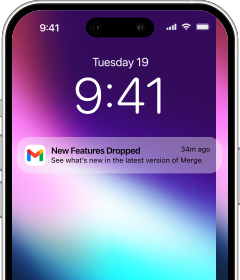
After pairing through Merge, Pixel Watch 4 delivers your iPhone's full notification stream to your wrist in real time - every message, alert, and app notification that reaches your iPhone appears on the watch. Per-app notification controls let you choose exactly which apps forward alerts, so adventure photography notifications don't compete with meeting reminders. Health data syncs continuously to Apple Health: heart rate, steps, distance, floors climbed, calories, workouts with GPS routes, and pace all route through Merge's health bridge.
iPhone contacts sync to the watch for wrist-level access - useful when satellite SOS is your backup and you want key contacts at hand. Music playback and volume are controllable from the watch while your iPhone plays, and camera control lets you trigger the iPhone remotely when the camera app is open - ideal for outdoor shoots where you want to step back into the frame.
ECG is available on Pixel Watch 4 through the Fitbit iOS app independently - take an on-demand heart rhythm reading on the watch and view the result in the Fitbit app on your iPhone, separate from and alongside your Merge setup.
The full Fitbit health suite - Daily Readiness Score, Active Zone Minutes, cEDA stress detection, skin temperature sensing - continues running after initial setup with no Android involvement. Loss of Pulse Detection operates entirely on the watch, independent of any phone. All health data syncs to Apple Health through Merge.
Android is required for activation - just once
Pixel Watch 4 cannot be activated with an iPhone. This is unchanged from every previous Pixel Watch generation. Google does not support iOS activation; the Wear OS by Google iOS app does not handle Pixel Watch pairing; and there is no Pixel Watch or Google app for iPhone that covers first-time setup. Initial activation requires a physical Android phone running Android 8.0 or later.
Borrow an Android phone, switch the watch on, and run through the setup flow: Bluetooth connection to the Android device, Google account sign-in, then a configuration period while the watch installs updates. The entire session runs about 10-15 minutes. When the watch lands on its home screen, the Android phone's role ends completely. Return it right away. From there, Merge is the only software the watch ever needs for iPhone connectivity.
Tip: Before returning the Android phone, also install the Fitbit app from the Play Store and connect it to the watch. This fully initializes the Fitbit health platform - features like Daily Readiness Score, Active Zone Minutes, and ECG require a Fitbit account to be linked on the watch before they become available. Once that connection is established, the Fitbit app on your iPhone takes over for ongoing use and the Android phone is no longer involved.
Pairing steps
After Android activation, your iPhone becomes the permanent connected device in two minutes.
- On your iPhone, open the App Store, search for Merge Watch, and install it.

- On the Pixel Watch 4, open Play Store, search for Merge Watch, and install it.

- Open Merge on your iPhone - approve the Bluetooth permission when prompted, then keep it foregrounded.
- On the Pixel Watch 4, open Merge and approve the Bluetooth permission when prompted.
- Tap Start Pairing - the watch stays discoverable for five minutes.
- On your iPhone, open Settings → Bluetooth and wait for the watch to appear in the list, then tap it to pair.
- Once paired, your iPhone will appear in Merge on the watch - tap it to complete the connection.
- Set up your Merge subscription via the iPhone app if prompted.
- Grant notification and health permissions on both devices when asked.
What Pixel Watch 4 offers that earlier generations don't
The satellite SOS capability on the LTE model directly addresses the scenario iPhone users with a Wear OS watch are most likely to face: no Android phone nearby, iPhone out of range or out of battery, and no cellular coverage. Pixel Watch 4's Skylo NTN integration covers all of that simultaneously. User repairability is also particularly relevant for cross-platform users - without easy access to Google's retail support ecosystem, being able to replace a degraded battery or cracked screen at home extends the watch's serviceable life considerably. Combined with Gemini AI on the wrist, Wear OS 6, and Merge's full connectivity layer - notifications, health sync, contacts, music, and camera control - Pixel Watch 4 is the most capable Pixel Watch yet for iPhone users willing to spend 10-15 minutes on the one-time Android activation.