Pixel Watch 3 finally came in two sizes - 41mm and 45mm - with the larger delivering 40% more usable screen area and 2,000-nit peak brightness. It also introduced Loss of Pulse Detection: a safety feature that monitors for signs of cardiac arrest entirely on-device, no phone required. The Android activation requirement stayed. Once that one session is done, Merge handles the iPhone connection permanently: notifications, health data syncing to Apple Health, contacts, music control, and camera control.
What works with iPhone once paired
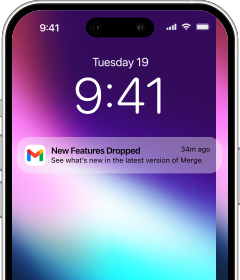
Merge bridges the Pixel Watch 3 to your iPhone so that every notification - Messages, Mail, WhatsApp, calendar alerts, third-party apps - arrives on the watch in real time, with per-app controls to decide which apps forward alerts to the wrist. The 45mm display renders notification text large enough to read without tapping through to an expanded view - message previews show meaningful content at a glance.
Health data syncs to Apple Health continuously: heart rate, steps, distance, floors climbed, calories, workouts with GPS routes, and pace all route through Merge's health bridge. iPhone contacts are available on the watch for quick reference, music playback and volume are controllable directly from the watch, and the iPhone camera can be triggered remotely from the watch when the camera app is open.
ECG is accessible on Pixel Watch 3 through the Fitbit iOS app independently - you can take a reading on the watch and review the result in Fitbit on your iPhone without any extra configuration. This works alongside your Merge setup, not instead of it.
The broader Fitbit health suite - Daily Readiness Score, Active Zone Minutes, cEDA stress detection, and skin temperature sensing - all remain active after initial Android setup. The watch captures this data on-device and syncs it to Apple Health through Merge regardless of which phone is nearby.
Initial setup requires Android - one time
Like every Pixel Watch generation, Pixel Watch 3 cannot be activated with an iPhone. Google does not provide an iOS activation path. The Wear OS by Google app on iPhone does not support Pixel Watch setup, and there is no Pixel Watch app for iPhone. Initial activation requires a physical Android phone running Android 8.0 or later.
The whole thing is a single session. Borrow any Android phone running Android 8.0 or later, power on the watch, and follow the prompts - Bluetooth pairing to the Android device, then a Google account sign-in, then a wait while the watch finishes its initial configuration. Budget 10-15 minutes. The watch holds its configuration independently after that, so the Android phone can be returned the moment setup finishes. Merge takes over as the permanent connection.
Tip: Before returning the Android phone, also install the Fitbit app from the Play Store and connect it to the watch. This fully initializes the Fitbit health platform - features like Daily Readiness Score, Active Zone Minutes, and ECG require a Fitbit account to be linked on the watch before they become available. Once that connection is established, the Fitbit app on your iPhone takes over for ongoing use and the Android phone is no longer involved.
Pairing steps
Pairing takes a couple of minutes once the initial Android activation is done.
- On your iPhone, search for Merge Watch in the App Store and install it.

- On the Pixel Watch 3, open Play Store, search for Merge Watch, and install it.

- Open Merge on your iPhone - approve the Bluetooth permission when prompted, then keep it foregrounded.
- On the Pixel Watch 3, open Merge and approve the Bluetooth permission when prompted.
- Tap Start Pairing - the watch stays discoverable for five minutes.
- On your iPhone, open Settings → Bluetooth and wait for the watch to appear in the list, then tap it to pair.
- Once paired, your iPhone will appear in Merge on the watch - tap it to complete the connection.
- Set up your Merge subscription via the iPhone app if prompted.
- Grant notification and health permissions on both devices when asked.
Why the 45mm matters for iPhone users
The 48-hour battery saver ceiling on the 45mm also reduces a practical friction point for cross-platform users: fewer charge cycles during days away from a charger. Loss of Pulse Detection runs entirely on the watch, so it works whether your iPhone is in your pocket, on a charger in another room, or left at home entirely - a meaningful safety feature for anyone who spends time in areas without reliable connectivity. Music control from a 45mm display is a notably more comfortable experience than on the 41mm - more wrist real estate for the controls, and notification text legible without squinting.