Pixel Watch 2 replaced the original's Samsung Exynos chip with Qualcomm's 4nm Snapdragon W5100 and added a continuous Electrodermal Activity sensor - physiological stress detection that no other Wear OS watch offered at launch. A genuine generational step. The Android activation requirement stayed. After those 10-15 minutes, Merge provides the permanent iPhone connection: notifications, health data routing to Apple Health, contacts, music control, and camera control.
What Merge provides after pairing
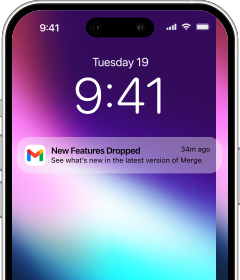
Through Merge, Pixel Watch 2 mirrors your iPhone's notification stream in real time. Every app alert, message, and calendar reminder that comes to your iPhone appears on the watch - and you can control which apps forward notifications per-app, keeping your wrist clear of alerts that don't need immediate attention. Health metrics sync to Apple Health continuously: heart rate, steps, distance, floors climbed, calories, workouts with GPS routes, and pace all land in Apple Health without any manual export.
iPhone contacts sync to the watch for wrist-level access, music playback and volume are controllable from the watch while your iPhone plays, and you can trigger the iPhone camera remotely from the watch when the camera app is open. The cEDA stress sensor and Merge's notification management complement each other neatly - you can set quiet notification windows while the cEDA monitors physiological patterns independent of your phone.
ECG is available on Pixel Watch 2 through the Fitbit iOS app independently - you can take an on-demand heart rhythm reading and review the results in the Fitbit app on your iPhone, without needing any additional configuration beyond having Fitbit installed.
The cEDA stress sensor runs continuously and surfaces Body Response notifications directly on the watch when it detects physiological stress patterns. Daily Readiness Score and Active Zone Minutes are all part of the Fitbit health suite that remains active once initial setup is complete - none of these require an Android phone to keep running.
The Android requirement - what it actually means
Pixel Watch 2 cannot be activated with an iPhone. Google's iOS Wear OS app does not support Pixel Watch pairing, and there is no Google or Pixel Watch iOS app that handles activation. The first-time setup requires a physical Android phone running Android 8.0 or later - this is how Google designed the product, and there is no alternate path.
Find an Android phone to borrow - a friend's or family member's device works fine. Turn on the watch, work through the on-screen setup flow, connect it to the Android phone over Bluetooth, and sign in with a Google account. The watch will download updates and finish configuring itself, which takes roughly 10-15 minutes in total. Once the setup wizard closes and the home screen is visible, hand the Android phone back. Merge handles everything from that point forward.
Tip: Before returning the Android phone, also install the Fitbit app from the Play Store and connect it to the watch. This fully initializes the Fitbit health platform - features like Daily Readiness Score, Active Zone Minutes, and ECG require a Fitbit account to be linked on the watch before they become available. Once that connection is established, the Fitbit app on your iPhone takes over for ongoing use and the Android phone is no longer involved.
Pairing steps
With Android activation complete, connecting to your iPhone is a short process.
- On your iPhone, search for Merge Watch in the App Store and install it.

- On the Pixel Watch 2, open Play Store, search for Merge Watch, and install it.

- Open Merge on your iPhone - approve the Bluetooth permission when prompted, then keep it foregrounded.
- On the Pixel Watch 2, open Merge and approve the Bluetooth permission when prompted.
- Tap Start Pairing - the watch stays discoverable for five minutes.
- On your iPhone, open Settings → Bluetooth and wait for the watch to appear in the list, then tap it to pair.
- Once paired, your iPhone will appear in Merge on the watch - tap it to complete the connection.
- Set up your Merge subscription via the iPhone app if prompted.
- Grant notification and health permissions on both devices when asked.
Day-to-day use with an iPhone
The 4nm Snapdragon W5100 is a genuine improvement over the Gen 1's chip - notification cards load without hesitation, the app list scrolls cleanly, and Merge's background relay process runs without competing for resources. The recycled aluminum case is roughly 10% lighter than the original's stainless steel. The cEDA stress notifications appear directly on the watch in real time, with no phone proximity needed for the detection to work. Merge's notification control adds a layer of boundary-setting that pairs well with the cEDA's physiological monitoring - reduce alert volume during focused periods and let the watch handle stress detection independently. Pixel Watch 2 functions as a capable full-time iPhone companion after the one-time Android activation step.