The Fossil Gen 6 was the first consumer smartwatch to ship Qualcomm's Snapdragon Wear 4100+ chip - a platform milestone it beat Google and Samsung to - housed in a round stainless case with a rotating crown and leather strap options from a company that has been designing watches since 1984. Fossil's companion app is Android-only. Merge is what connects it to iPhone: notifications, Apple Health sync, contacts, music control, and camera control from the watch that led the Wear OS performance curve at launch.
What works with iPhone via Merge
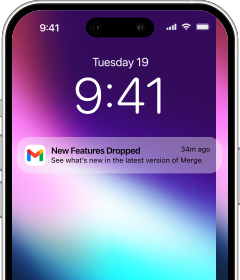
With Merge running, the Gen 6 becomes a capable iPhone companion. Notifications from every app on your iPhone - Messages, Mail, Slack, Calendar - arrive on the watch in real time, with per-app controls to keep work and personal alerts separate. Health data syncs to Apple Health automatically: heart rate, steps, distance, floors climbed, calories, workouts with GPS routes, and pace all route through Merge's health bridge.
iPhone contacts sync to the watch - a natural fit for a fashion watch worn in social settings where a quick glance at a name is more discreet than pulling out your phone. Music playback and volume are controllable from the watch, and camera control lets you trigger the iPhone remotely when the camera app is open - useful for capturing moments when you want to step back from the phone. The Wear OS watch face library is deep enough to find something that reads like a traditional timepiece rather than a fitness dashboard, which suits the Gen 6's fashion-forward design language.
Android activation note
Wear OS first-time setup for the Gen 6 cannot be completed on iPhone. You need an Android phone for the initial activation - if you don't own one, borrowing a friend's or family member's device handles it. Power on the watch, connect it to the Android phone via Bluetooth, sign into a Google account, and let the watch finish its configuration. The whole process takes roughly 15 minutes, and once it's done, that Android phone is no longer part of the picture. iPhone and Merge take over from there.
Pairing Fossil Gen 6 with your iPhone
Keep your iPhone and watch within a few feet of each other throughout this process.
- Complete initial Wear OS activation using an Android phone.
- On your iPhone, search for Merge Watch in the App Store and download it.

- On the Fossil Gen 6, open Play Store, search for Merge Watch, and install it.

- Open Merge on your iPhone - approve the Bluetooth permission when prompted, then keep it foregrounded.
- On the Fossil Gen 6, open Merge and approve the Bluetooth permission when prompted.
- Tap Start Pairing - the watch stays discoverable for five minutes.
- On your iPhone, open Settings → Bluetooth and wait for the watch to appear in the list, then tap it to pair.
- Once paired, your iPhone will appear in Merge on the watch - tap it to complete the connection.
- Set up your Merge subscription via the iPhone app if prompted.
- Grant notification and health permissions on both devices when asked.
The Gen 6 as a daily iPhone watch
Once Merge is running, the Gen 6 handles the full iPhone companion workload cleanly. The 4100+ chip keeps the experience responsive throughout the day, and the Wear OS 4 update - a notable commitment from Fossil for hardware that launched in 2021 - improved notification handling and battery management meaningfully compared to earlier software. Battery is around 24 hours, but the 80% in 30 minutes charging means a brief dock stop in the morning recovers most of what you lost overnight. Contacts on the wrist, music control during commutes, and camera remote for group shots round out the daily utility. For an iPhone user who wants a round, leather-strap watch that doesn't look like a fitness tracker, the Gen 6 fills that space at a price well below the Swiss alternatives.