Series 5 made the Apple Watch screen permanent - always-on, dimmed but readable at all times without raising your wrist - and added a built-in compass that operates entirely without any phone. Titanium and ceramic case options arrived with it too. Apple designed all of it for iPhone, not Android. Merge is why that's not the end of the story: one iPhone activation, and Series 5 connects permanently to your Android phone putting Android notifications, health data, and complete watch control in your hands.
Everything Merge connects
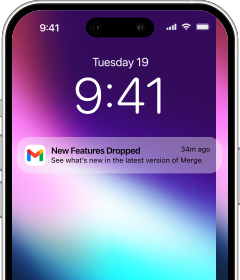
The always-on display means Android notifications are glanceable without a wrist raise - and with Merge you choose exactly which apps deliver those alerts and which notification types within each app come through. That granular notification control pairs well with a display that's always visible. Messaging replies and quick actions are available right from the watch face, so the AOD becomes more than a clock - it's a live window into your Android phone.
Health data syncs to Google Fit and Health Connect: workouts, heart rate, sleep, steps, and calories. ECG readings sync to the Merge app on your Android phone, so that history is available on the platform you actually use. Music playback on your Android phone is controllable from the watch, and Find My lets you ring phone or watch to locate either device.
Every connection between Series 5 and Android through Merge is end-to-end encrypted - over Bluetooth when the devices are near each other, and over the internet when they're not. The Smart Hotspot feature handles the phone's hotspot automatically, so the watch stays connected when it's away from Wi-Fi without any manual setup.
One-time iPhone activation
Every Apple Watch needs an iPhone for its initial setup. You do this once and the iPhone doesn't need to come back after.
Series 5 runs up to watchOS 10, which requires an iPhone XS or later (or iPhone SE 3rd generation) running iOS 17 or later. Your own iPhone? The Watch app on your iPhone takes you through the standard flow. Borrowing a phone? Use Set Up for a Family Member in their Watch app, configure the watch with your Apple ID, and make sure both Apple IDs are in Family Sharing - you can set that up on the spot. After activation, watchOS updates install directly on the watch via Settings - General - Software Update over Wi-Fi.
Installing Merge
Install both apps before starting the pairing process.
- Search for Merge Watch in the Google Play Store on your Android phone and install it.

- Open the App Store on your Apple Watch and search for Merge Watch to install it.

Pairing Series 5 to Android
Stay close to your phone during the initial connection - within a couple of feet is ideal.
- Start with Merge on your Android phone - open it and approve all the permissions.
- Keep Merge open on your phone, then open it on your Apple Watch and allow Bluetooth access.
- Your Android phone will appear on the watch screen - tap it to select it.
- A PIN appears on the watch - enter it on your Android phone. The devices pair in seconds.
- If prompted, set up your Merge subscription now.
- On your Apple Watch, grant notification and health permissions.
- On your Android phone, approve health permissions too.
Day-to-day with Series 5 on Android
The always-on display is the defining day-to-day experience of Series 5 - the screen stays dimly lit at all times, so a glance tells you the time and surfaces any notification without a wrist raise. That display behavior is entirely a watch-side feature and works identically regardless of which phone is paired. The built-in compass is also fully standalone - no phone needed for heading and waypoint data, which matters for hiking and navigation use. Android notifications flow through Merge to the always-visible display, health data reaches Google Fit and Health Connect, and the Merge internet link keeps the devices connected when they drift apart.