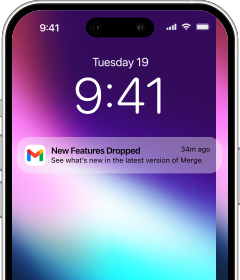
What Merge delivers on iPhone
OnePlus designed its Wear OS watches for Android. Merge connects them to iPhone. Once paired through Merge, notifications from every app on your iPhone arrive on the watch in real time. You control which apps push alerts and can configure notification types per app - so your wrist only shows what you actually want to see.
Health data syncs to Apple Health: workouts, heart rate, steps, distance, floors climbed, and calories transfer automatically. Music playing on your iPhone is controllable from the watch. Camera control lets you trigger your iPhone camera from your wrist. Contacts sync for caller ID on incoming calls.
The one-time Android step
OnePlus Watch requires an Android phone for its initial activation. All Wear OS watches do — it's how the watch gets its software configured and account linked. The activation takes about 10-15 minutes and happens once. Borrow an Android phone if you don't own one, complete the setup, and return it. The watch doesn't need it again.
- Find Merge Watch in the App Store and install it on your iPhone.

- Find Merge Watch in Google Play and install it on your OnePlus Watch.

Once activated, open both apps and pair through Merge. Full guide: How to connect OnePlus Watch 3 to iPhone.
Which OnePlus Watch models work
OnePlus Watch 2 and OnePlus Watch 3 are supported through Merge. Both run Wear OS and connect to iPhone through the same pairing flow.
The features are consistent across both: iPhone notifications, health sync to Apple Health, music control, camera control, and contacts.
How the connection works
Merge connects OnePlus Watch to your iPhone over Bluetooth. The watch and iPhone need to be in Bluetooth range for notifications to arrive.
Open both apps, approve Bluetooth permissions on each, then tap Start Pairing on the watch and connect from your iPhone's Bluetooth settings. After pairing, the connection runs quietly in the background.