Who actually needs this
Two-phone life is more common than the watch industry acknowledges. Corporate IT policies push Android on work phones while people keep iPhones personally - or the opposite, an Android-first person issued an iPhone for work. Either way, the watch was always forced to choose. Miss a Slack notification from the work phone, or miss a WhatsApp from family on the personal one.
Tech enthusiasts switching between ecosystems run into the same wall. Someone evaluating a move from Android to iPhone - or back - can spend weeks with both platforms in hand and no clean way to wear a single watch across both. Merge was built to close this gap, and it's the first product to have done it.
What Merge actually enables
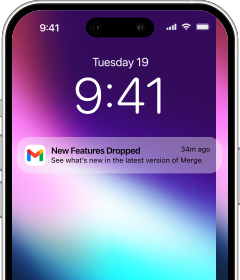
Merge connects a smartwatch to both an iPhone and an Android phone simultaneously - not alternately, not with manual switching, but both at once. Notifications from whichever phone you're using appear on your wrist in real time. Health data syncs. Music controls work for whichever phone is playing. The watch doesn't know or care which platform sent the signal.
This works in two directions. Apple Watch users can pair their watch to an Android phone through Merge while keeping iPhone connectivity - notifications, health sync, ECG to the Merge Android app, messaging and actions. Android watch users - Galaxy Watch, Pixel Watch, and others running Wear OS - can pair to an iPhone through Merge while the watch still does everything it does natively on Android.
Apple Watch with both phones
Apple Watch requires an iPhone for initial setup and stays paired to it natively. Merge adds the Android phone as a second simultaneous connection. On the watch, Android notifications arrive alongside iPhone ones. Health data - workouts, heart rate, sleep, steps, calories - syncs to Google Fit and Health Connect on the Android phone. ECG readings sync to the Merge app on Android. The watch doesn't distinguish between the two phones; both are live at the same time.
Every Apple Watch model from Series 4 onward works with Merge. That includes the SE, Ultra, and Ultra 2. The model you already own is almost certainly compatible.
Android watch with both phones
Android watches - Samsung Galaxy Watch, Google Pixel Watch, and any Wear OS watch - are designed for Android. Merge adds simultaneous iPhone connectivity without replacing the Android-side features. On the iPhone side, notifications arrive on the watch in real time, health data syncs to Apple Health, contacts sync for caller ID, and music and camera controls work from the wrist. On the Android side, the watch continues doing everything it normally does.
Samsung Galaxy Watch models additionally support phone calls through Merge - calls from either phone ring on the watch and can be answered from the wrist. For non-Samsung Wear OS watches, the iPhone notification and health sync still runs alongside the watch's native Android connection.
Setup takes about 15 minutes
- Merge for Apple Watch

- Merge for Android phone

- Merge for iPhone (Android watch users)
- Merge for Android watch
Install Merge on both phones and the watch, then pair each connection through the app. For Apple Watch with Android, follow the full walkthrough at How to connect Apple Watch to Android. For Wear OS watches, find your model in the Merge guides portal. Android watches need a one-time Android activation first — about 10-15 minutes with any Android phone — and after that both connections run simultaneously without any switching.